Salesforce Experience Cloud, and every site beyond it
Restyle your live site by pointing at it
OmniStyler is a visual styling tool for any site you own. We cut our teeth on the hardest surface on the web, Salesforce Experience Cloud, so the point-and-style loop, stable selectors, and clean CSS handle your portal, your landing pages, and everything in between.
Free, no account. Edits stay in your browser until you choose to sync. Deep support for Aura and LWR Experience Cloud, FlexCards, and shadow DOM, and it works just as well on any standard site.
Watch the actual loop
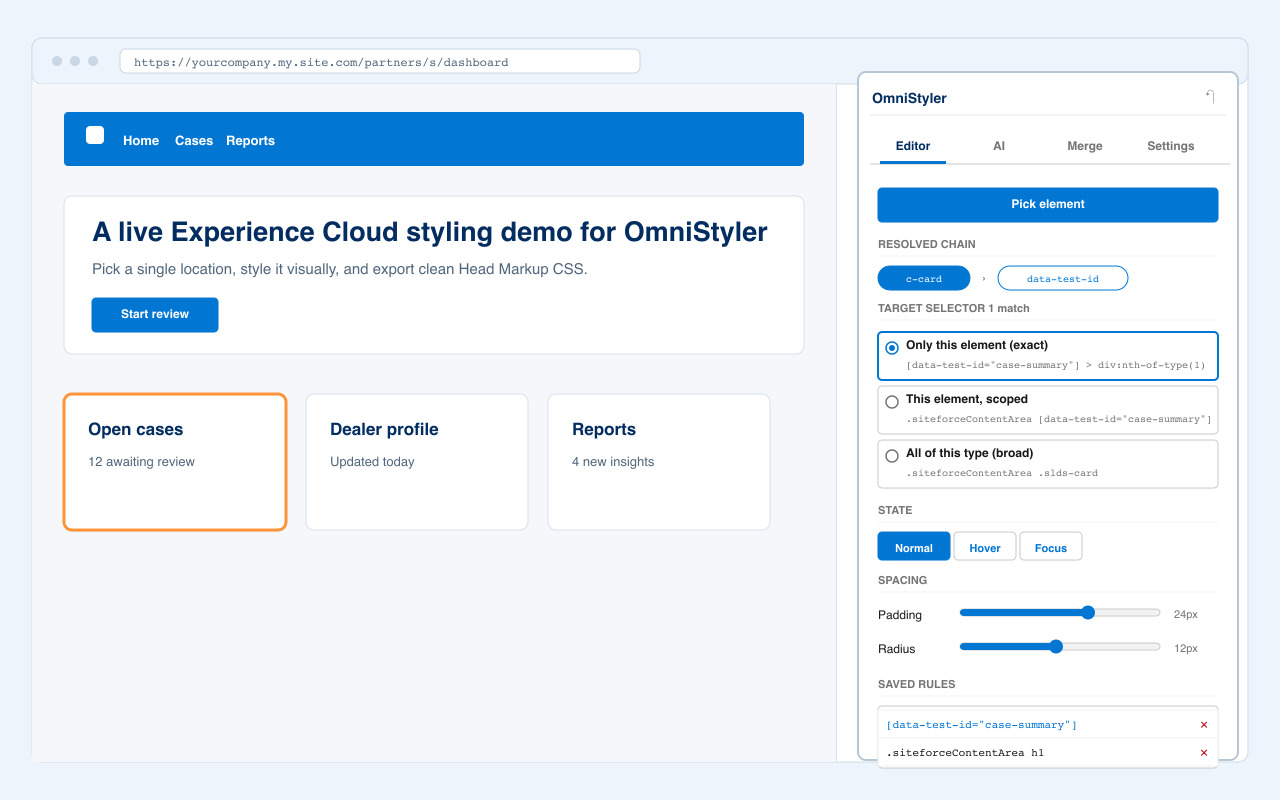
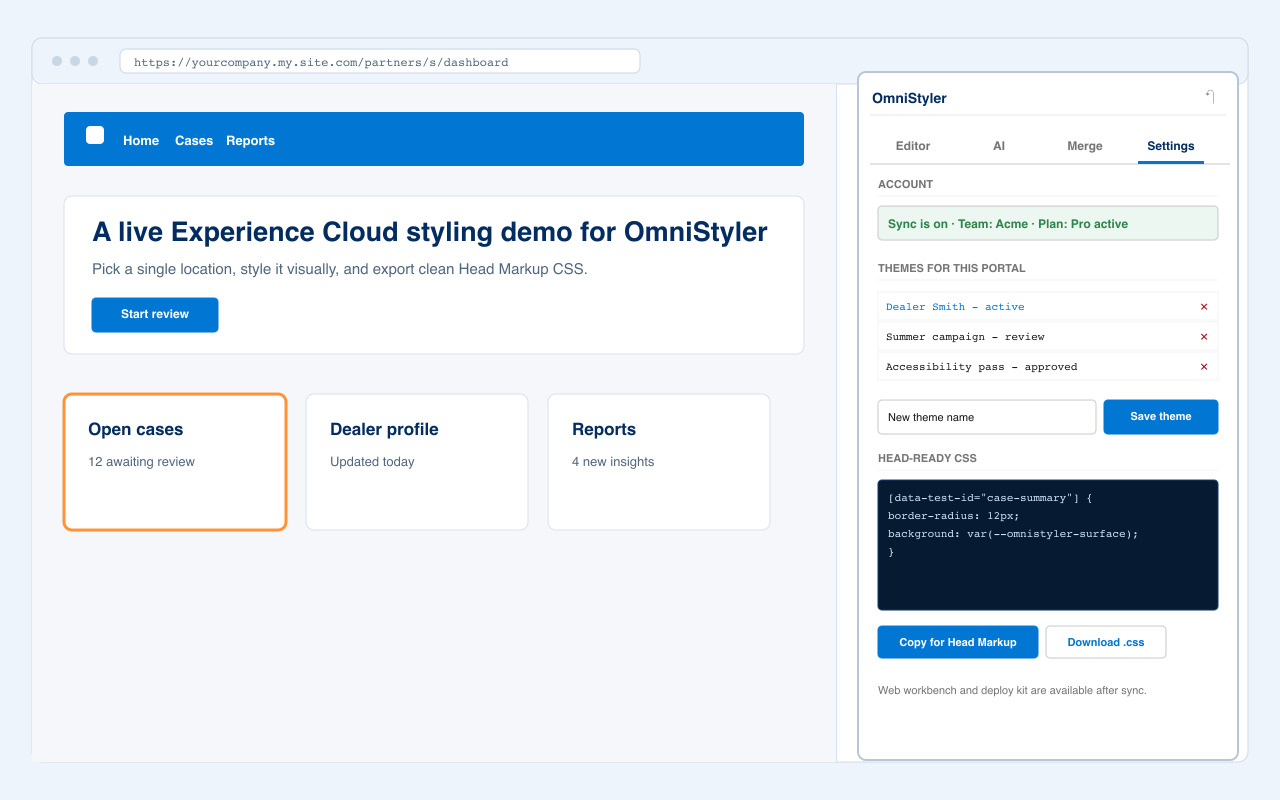
The product proof is the live side panel: point at any element, see the selector reasoning, restyle it, merge the CSS, and hand off deployment. The screenshots run on Experience Cloud, the hardest case, but the loop is identical on any site.
The panel shows the resolved chain, stable anchors, selector options, and a live match count before a rule is saved, so you always know exactly what you're about to style.
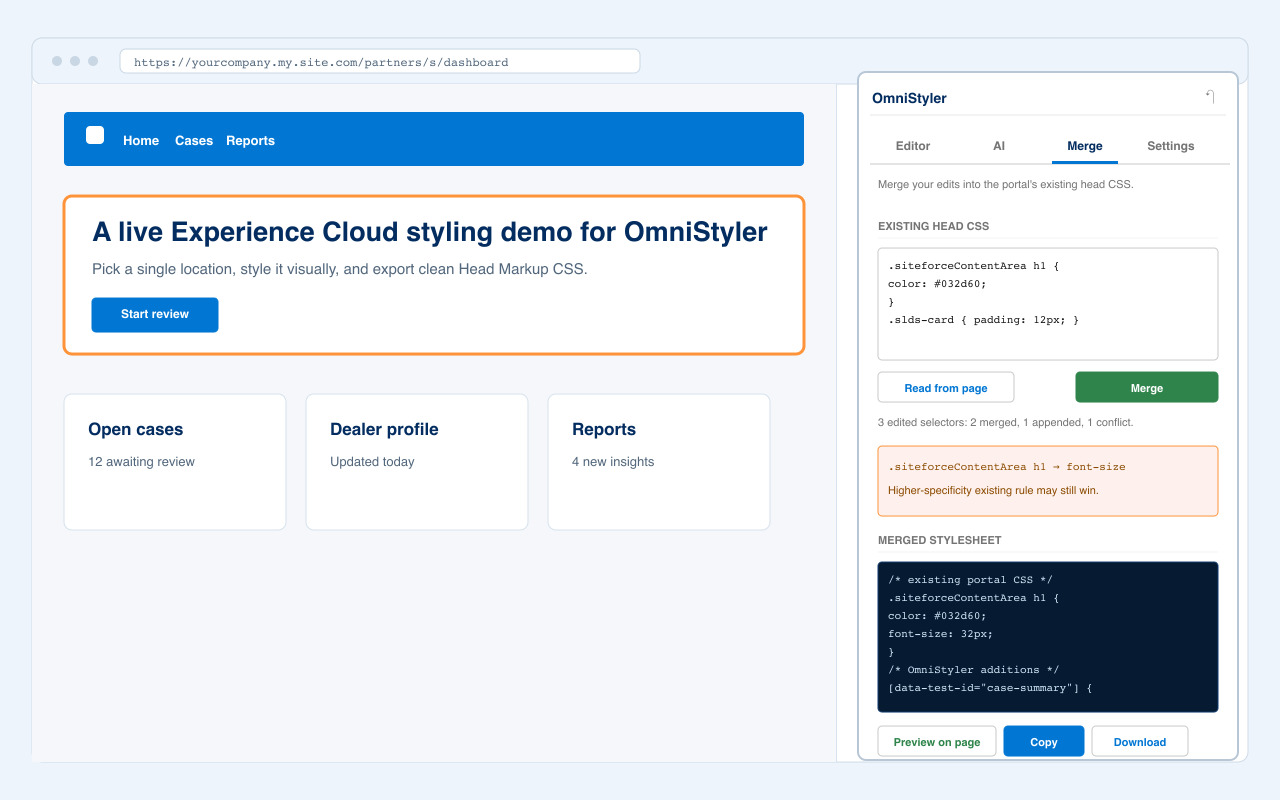
Your site's existing CSS is parsed, matching rules are updated, new rules append, and conflicts are reported before anything ships.
Export one clean stylesheet for any site. On Salesforce, turn a theme into a CLI project with static resources, metadata, Head Markup, and a README.
From first click to live site
Four stages, one tool. The free editor handles the loop; your OmniStyler account carries the theme through review, merge, and deployment.
Pick
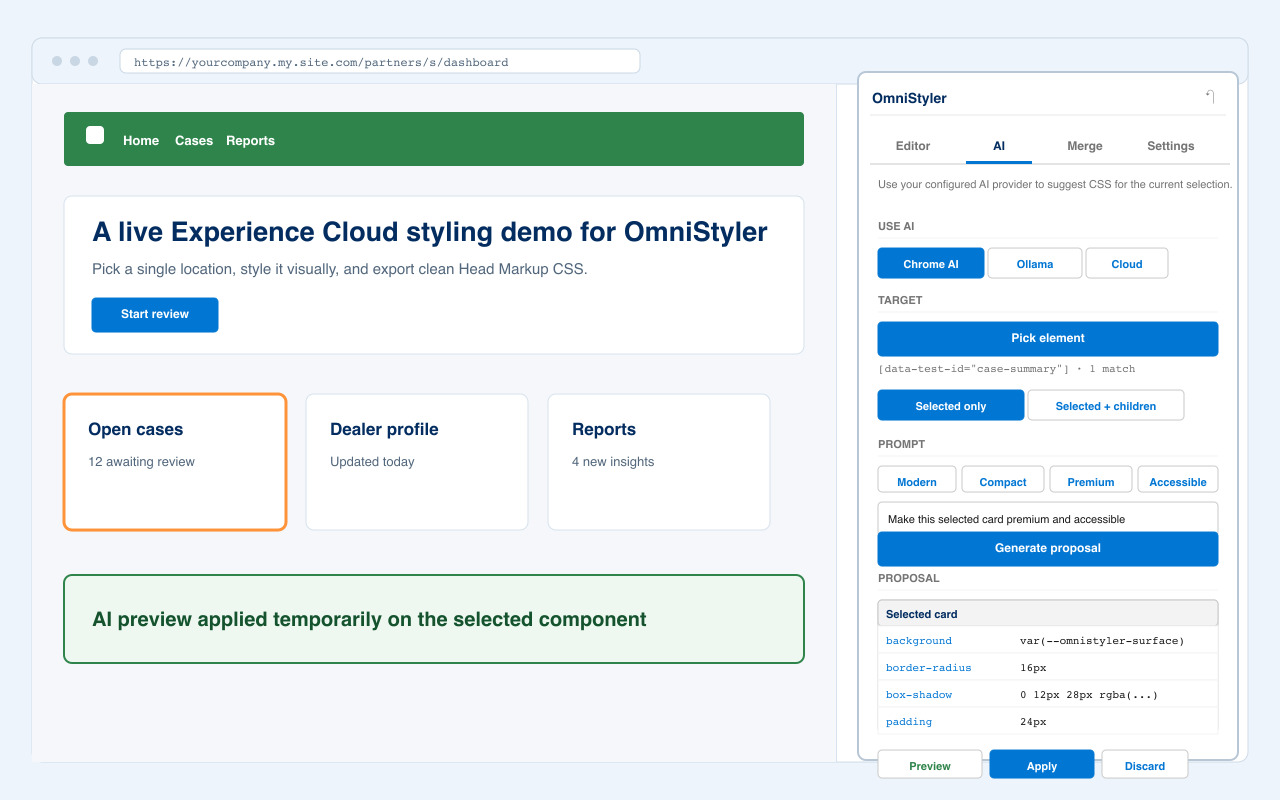
Click any element, even inside shadow DOM. OmniStyler ranks stable selectors anchored on attributes like data-test-id and ignores the volatile class names frameworks churn. That's the trick we perfected on Salesforce, and it's useful everywhere.
Style
Grouped visual controls for color, spacing, type, borders, and effects. Every change applies to the live page instantly, with 50 steps of undo.
Merge
Bring in your site's existing CSS and OmniStyler merges your edits into it, preserving unrelated rules and flagging conflicts before they bite.
Ship
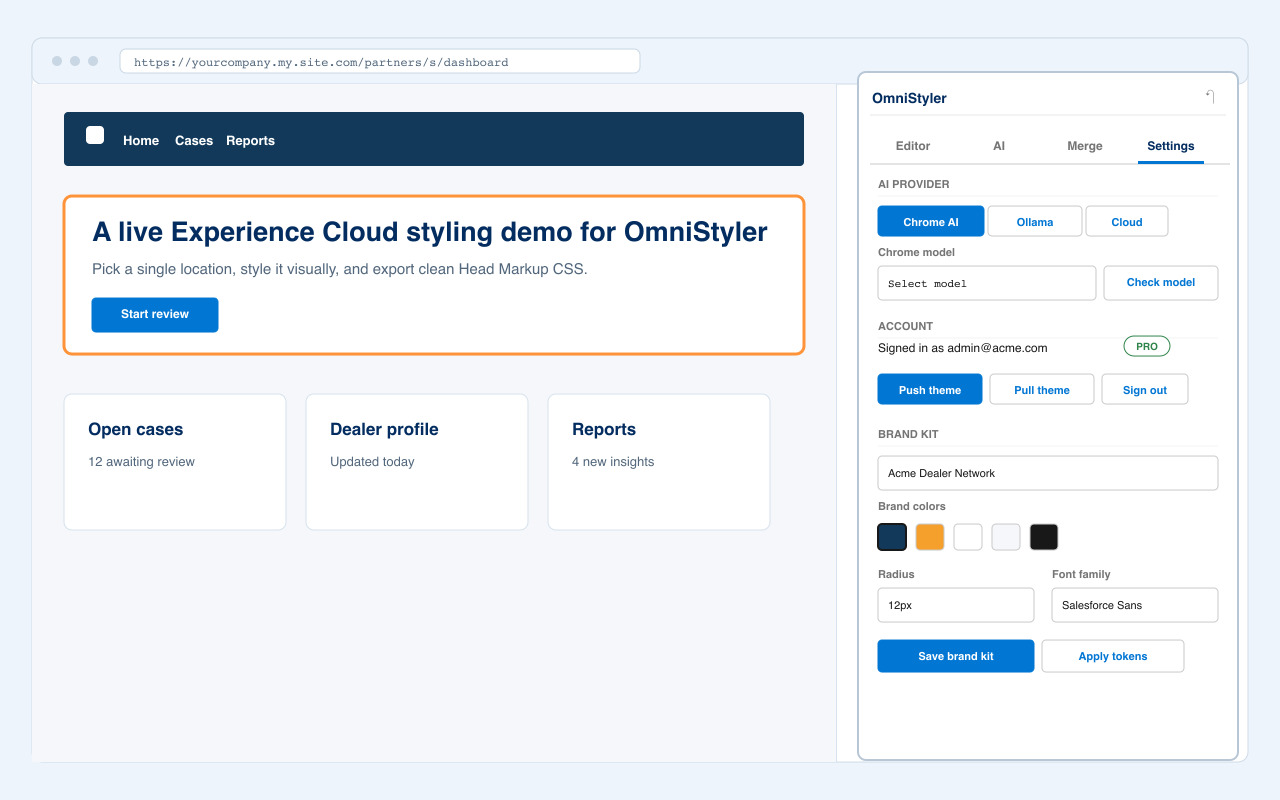
Copy one ready-to-paste stylesheet for any site. On Salesforce, generate a CLI deploy kit with static resources, metadata, and instructions. Test, then go live.
OmniStyler vs the manual CSS loop
What used to be a full day of view-source, blind CSS, chat snippets, deploy-to-check, and rework is now a visual loop that ends in one reviewable stylesheet, on any site, and especially the ones that fight back.
| Problem | Manual / generic CSS workflow | OmniStyler workflow |
|---|---|---|
| Finding selectors | Inspect the DOM, copy unstable classes, guess what survives the next release or deploy. | Ranked selectors anchored on stable attributes and structural wrappers, tuned on Salesforce's worst-case churn, dependable on any site. |
| Checking scope | Deploy or paste CSS, reload, then discover the selector touched too much or nothing at all. | Live match count and Test selector outline the exact affected elements before shipping. |
| Existing CSS | Append more rules and hope cascade order beats the old stylesheet. | Merge updates matching rules, preserves unrelated CSS, and reports specificity or important conflicts. |
| Handoff | Loose snippets in chat or a pastebin with missing placement context. | One clean stylesheet for any site, or a Salesforce CLI deploy kit with static resources, metadata, and README. |
Built for the parts that hurt
Styling breaks on selector churn, hidden CSS conflicts, and vague handoffs, and Experience Cloud is where it breaks worst. Every feature here exists because one of those burned a real project. What survives Salesforce makes every other site trivial.
Selectors that survive releases
Anchored on stable attributes like data-test-id, scoped to structural wrappers, with !important added only when the runtime forces inline styles. Hardened against Salesforce's class-name churn, dependable on any site.
Merges with your existing CSS
Real CSS parsing, not string matching. Your edits update matching rules, new ones append cleanly, and a conflict report shows where existing higher-specificity rules would still win.
Named themes and versions
Save holiday, campaign, and rebrand variants per site. Move them through draft, review, approved, and archived. Every sync keeps a version you can diff and restore.
One theme, whole team
Share sites with admins, designers, and developers. Roles control who edits, the active theme loads automatically for everyone, and review notes travel with the work.
Deploy kit, not loose snippets
Export one clean stylesheet for any site. On Salesforce, one click turns a theme into a CLI project: static resource, metadata, Head Markup, and a README your developer can run without asking questions.
Account center, any browser
Company blocks browser extensions? The account center runs in any browser with no install: manage your themes and brands, merge with a site's existing Head Markup CSS, and download the same deploy kit. Live point-and-click styling is the one part that needs the extension.
The Salesforce specialty, in depth
This is the part competitors skip, and the reason admins and SI partners trust us. Experience Cloud gives you three layers to style, each doing a different job, and OmniStyler generates a matching output for every one. Master the hardest surface on the web and a normal website is a walk.
Experience Cloud CSS
Lives in the site itself: the Theme CSS editor, Head Markup, or a linked static resource. It styles the portal shell (header, navigation, page layout) and affects only that one site.
Component stylesheet
A plain CSS file uploaded as a static resource and attached to a component in Setup. It travels with the component everywhere it renders. It's the reliable way to reach inside FlexCards and other Lightning components, including the Builder preview.
Design tokens
Brand variables such as --lwc-colorBrand: #0176d3; set once in Setup. Aura reads --lwc-, LWR reads --dxp-g-, and SLDS 2 themes read --slds-g- hooks. Rebrand without touching a single rule.
Which one when
- Styling the page shell (header, navigation, layout): Experience Cloud CSS, in the site.
- Styling a component itself, consistently everywhere it renders: the component stylesheet static resource.
- Brand colors, spacing, and radius with zero CSS: design tokens in Setup. Salesforce does not support them in Safari, so keep a stylesheet as a fallback.
- On LWR sites, components render in native shadow DOM and site-level CSS cannot reach inside them. Lead with design tokens and the component stylesheet there, and keep site CSS for the shell.
The full write-up, including internals, techniques, and do's and don'ts, lives in the styling guide.
Built for every styling workflow
From a single landing page to a network of client portals. The live editing stays simple; organization, review, history, and deployment live in the account. We start with the people who feel the Salesforce pain most, and the same loop serves anyone who owns a web presence.
Salesforce admins
Restyle the live Experience Cloud portal yourself instead of logging a ticket. Copy head-ready CSS and test it in a sandbox the same afternoon.
Agencies and SI partners
One account, many client sites and portals. Reusable base themes, client approval notes, team roles, and deploy kits your delivery team can run.
One site, many styles
Holiday, campaign, dark-mode, and rebrand variants under one site. Approve one, archive the rest, keep every version.
Designers & marketers
Restyle landing pages and marketing sites visually, with a live match count so you never break something you cannot see. Hand developers clean CSS, not screenshots.
Freelancers
Keep each client site separated, duplicate concepts, export review previews, and hand off clean CSS without sharing your account.
Developers
Stable selectors, merge conflict reports, ready-to-paste CSS, and on Salesforce, a CLI project instead of loose snippets pasted into chat.
For partners and agencies
One repeatable loop for every client
Agencies do not need another one-off CSS generator. They need a way to reuse base themes, separate client work, review changes without handing over access, and give developers a deploy kit they can run cold, across Experience Cloud portals and ordinary client sites alike.
Launch pricing
The editor is free, full stop, on any site. Paid plans cover the account layer: cloud sync, theme libraries, review workflow, version history, team access, and deployment.
Free
The full editing loop, on your machine.
$0
- Live visual editor in the extension
- CSS merge with conflict report
- Copy and download head-ready CSS
- No account required
Pro
For one admin, designer, or consultant.
$39 / month
- Cloud sync across devices
- Named themes per site
- Version history with restore
- Deploy kit from account themes
Team
For a company managing its sites together.
$99 / month
- 3 included seats
- Shared site & portal library
- Roles and active-theme auto-load
- Draft, review, approved, archived states
Agency
For partners managing many client sites.
$199 / month
- 10 included seats
- Client workspaces
- Review preview exports
- Theme bundle import and export
Launch offer: every paid feature is free for signed-in users until July 31, 2026. These are launch prices. Enterprise plans for procurement, security review, SSO, and high site counts are available on request. See full pricing and FAQ.
Get the extension
Available on the Chrome Web StoreInstall OmniStyler from the Chrome Web Store, open the site you want to restyle (an Experience Cloud portal, a landing page, anything you own) and allow site access for that domain.
Install from Chrome Web StoreExtensions blocked by IT? The account center covers theme management, merge, and the deploy kit in any browser with no install at all.
Need security details? See permissions, data handling, and procurement notes.
- Install OmniStyler from the Chrome Web Store.
- Open the site or Experience Cloud portal you want to restyle.
- Click the OmniStyler icon and allow access on that site.
- Click Pick element. You are styling.
The next restyle takes fifteen minutes
Free to start, nothing leaves your browser, and the output is one clean stylesheet, ready for any site, or Salesforce Head Markup.
Install the free extension